What are automations
Build multi-step email journeys that enroll contacts and advance them over time.
Automations are multi-step email sequences. A contact gets enrolled when a trigger fires, then moves through your workflow — sending emails, waiting, branching on conditions — at its own pace. Think welcome series, trial nurture, re-engagement, post-purchase follow-up.
This is the key difference from rules: a rule reacts to one event with one instant action; an automation enrolls a contact and walks them through a journey over minutes, hours, or days.
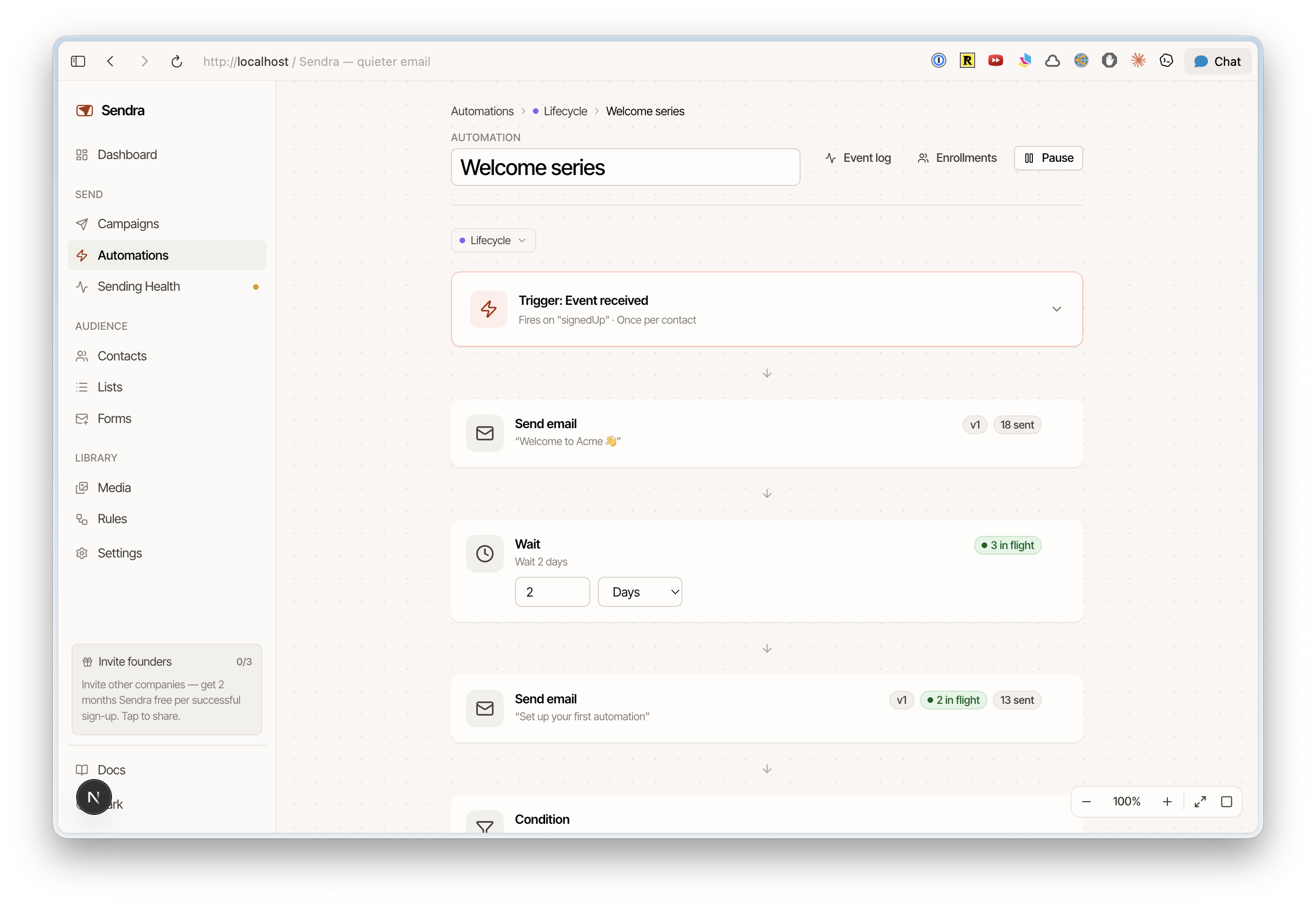
How an automation runs
- A trigger enrolls a matching contact.
- The contact enters the workflow at the first step.
- Each step runs in order — sends advance immediately, Wait steps pause the contact until their timer is up.
- The contact exits when they reach an Exit step, finish the workflow, or match a workflow-level exit event.
You can watch this live: each automation has an Enrollments panel showing who's currently in the flow and which step they're on.
Triggers
Set what enrolls a contact:
| Trigger | Fires when |
|---|---|
| Contact added | A brand-new contact is created (via form, import, API, or manually) |
| Added to list | A contact subscribes to a list (optionally scope to specific lists) |
| Contact updated | A contact property changes (optionally scope to a specific field/value) |
| Event received | A custom event you send matches the name(s) you pick |
Frequency controls re-enrollment:
- Every time (default) — every matching trigger creates a fresh enrollment. Good for cyclical flows.
- One time per contact — only the first match ever enrolls a contact. Good for onboarding.
Steps
Build the journey from these blocks:
| Step | What it does |
|---|---|
| Send email | Sends an email composed right in the builder (subject, sender, content, header/footer) |
| Wait | Delays the contact for a set number of minutes, hours, or days |
| Condition | Checks a property or whether an event occurred, and only continues if it's true |
| Branch | Splits the path multiple ways based on conditions, with a default catch-all |
| Experiment | Randomly splits contacts across variants by percentage to A/B test, with an optional goal event |
| Exit | Ends the journey for that contact |
Tagging, adding to lists, and unsubscribing aren't automation steps — those are rule actions. Automations focus on the email journey itself.
Exit on events
Each automation has a workflow-level Exit on events list. The moment one of those event names arrives for an enrolled contact, their enrollment is dropped — no matter which step they're on. Use it to pull someone out of a trial-expiry sequence the instant they purchase, or stop a re-engagement flow once they sign back in.
Editing safely
Emails have a published version and a draft. Contacts already mid-flight keep running against the version that was live when they entered the step, so editing and re-publishing an email never disturbs anyone currently in the sequence. You can roll back to a previous version of any email step.
Activating
New automations start paused so you can build and review without enrolling anyone. Flip it to Active when you're ready. (Activation checks your plan's contact limit.)
Use Test send to preview an email step to yourself before going live.
Organizing
Group automations into collapsible folders on the list page, and drag them between folders or into Archived to keep the workspace tidy. Archived automations stop enrolling but stay around for reference.