Campaign reports
Analyze campaign performance with detailed open, click, bounce, and complaint metrics.
After sending a campaign, Sendra tracks engagement and presents it in a detailed report.
Accessing reports
Go to Campaigns, find the sent campaign, and click View Report (or click into the campaign and select the Report tab).
Metrics
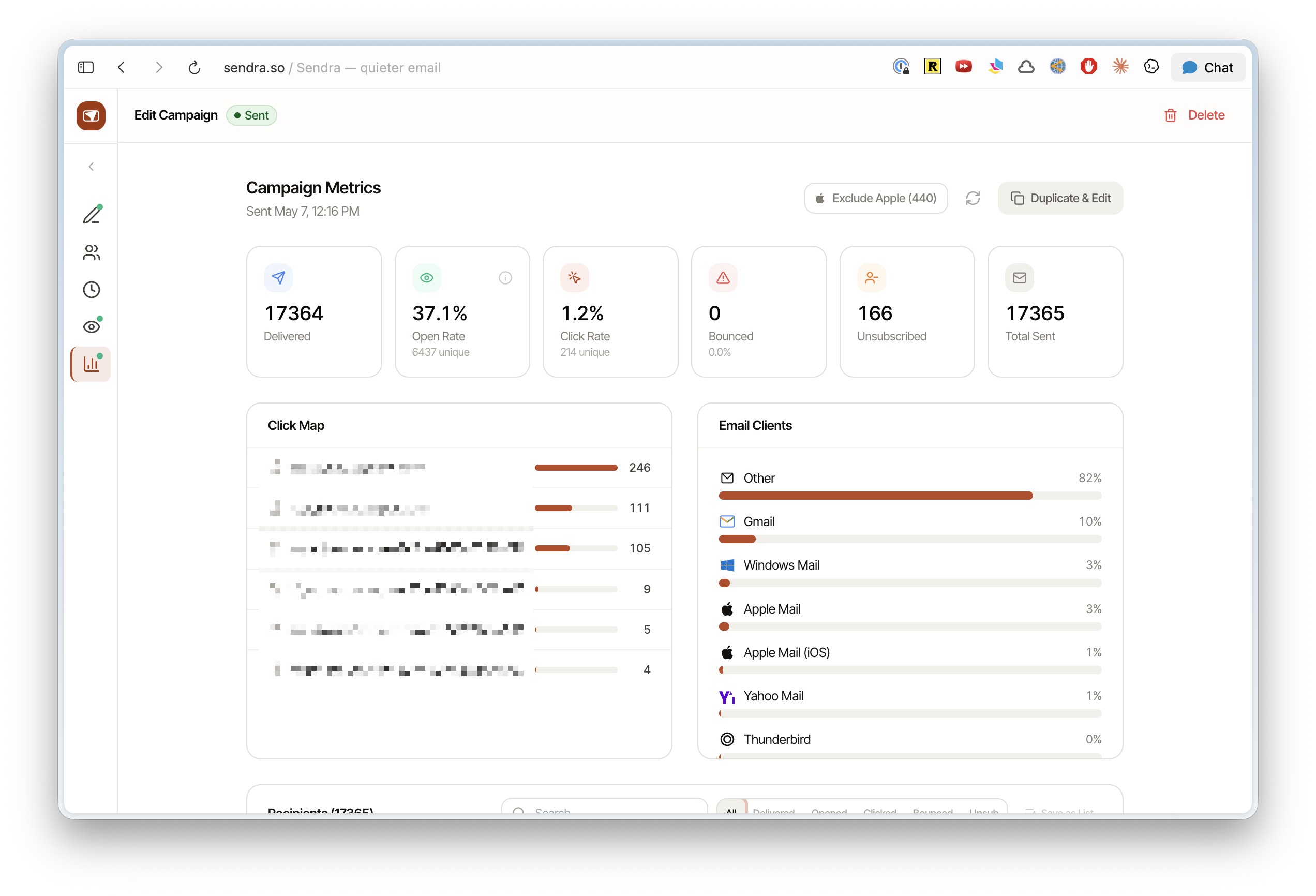
Delivery
- Sent — total emails sent
- Delivered — emails accepted by the recipient's mail server
- Bounced — emails that couldn't be delivered (hard bounces indicate permanent failures)
- Complaints — recipients who marked your email as spam
Engagement
- Opens — how many recipients opened the email (tracked via a transparent pixel)
- Open rate — opens / delivered, as a percentage
- Clicks — how many recipients clicked a link in the email
- Click rate — clicks / delivered, as a percentage
- Click-to-open rate — clicks / opens (measures engagement among people who actually saw the email)
A/B test results
Campaigns that ran a subject-line test show an A/B test section with both subjects side by side, the winner, and controls to pick or override it. See A/B testing subject lines.
Activity feed
A chronological list of individual events — who opened, who clicked, which links they clicked, bounces, and complaints. Click into any contact to see their full profile.
Understanding the data
Open rates are approximate. Open tracking relies on image loading, which can be affected by:
- Apple Mail Privacy Protection (pre-loads images, inflating open counts)
- Image blocking in some email clients (suppresses opens)
- Bot pre-fetching by corporate email gateways
Click rates are more reliable and generally a better measure of actual engagement. See Understanding open rates for more detail.
Bounce and complaint handling
Sendra processes SES bounce and complaint notifications automatically:
- Hard bounces — the contact is marked as bounced and excluded from future sends
- Complaints — the contact is marked and excluded
This happens in real time through the SES webhook integration.