Importing contacts
Import contacts from a CSV file into Sendra.
The fastest way to bring your existing audience into Sendra is a CSV import.
Preparing your CSV
Your CSV file needs at least an email column. Additional columns are mapped to contact properties:
Supported columns:
email(required)firstName,lastName- Any custom property name you've created in Sendra
Importing
- Go to Contacts → Import
- Upload your CSV file
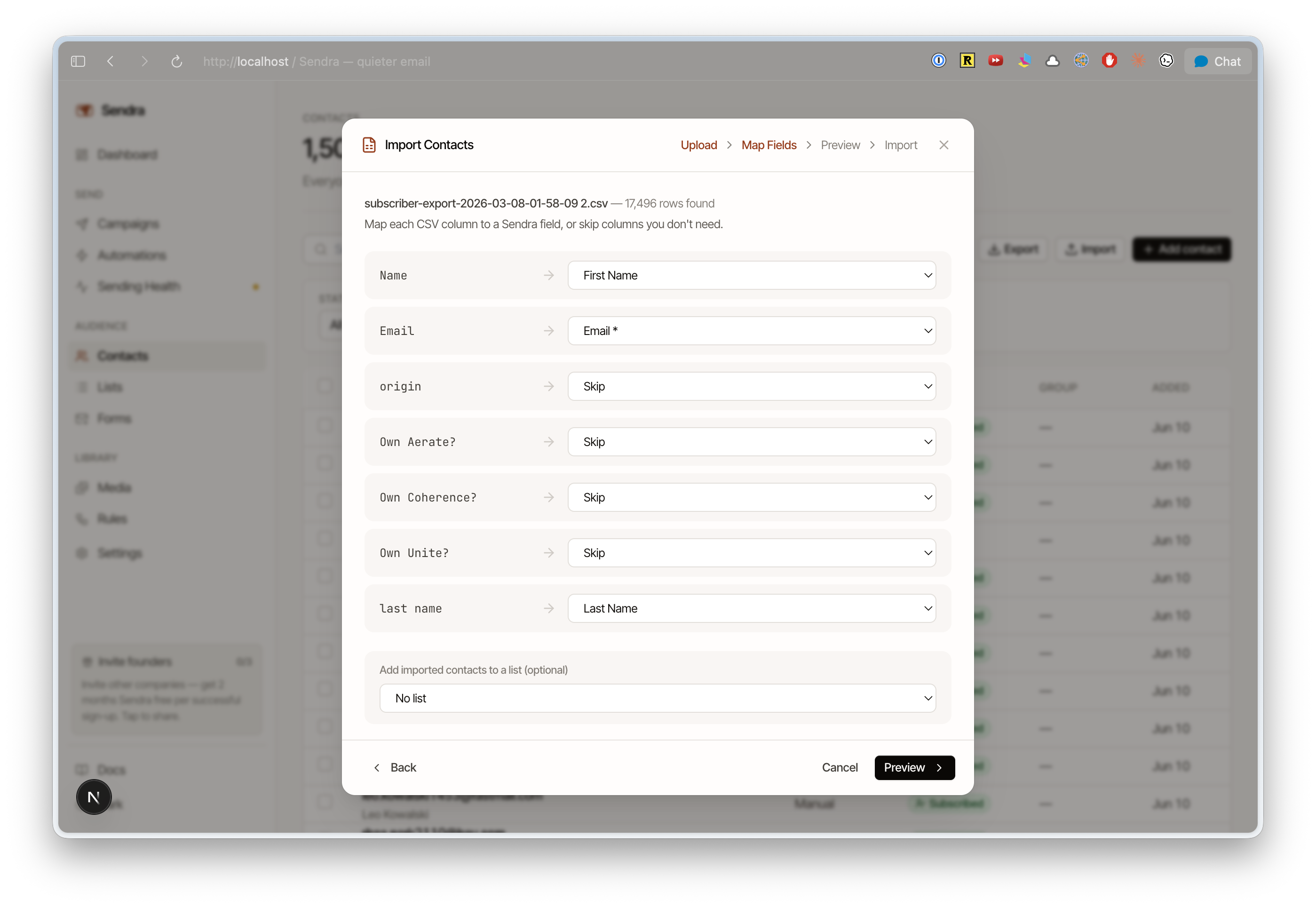
- Sendra auto-maps columns to contact properties — verify the mapping
- Optionally assign imported contacts to a list
- Click Import
Sendra shows a summary of how many contacts were created, updated, or skipped, with skipped rows broken down by reason. Rows whose email address can't be delivered to (whitespace or control characters, non-ASCII characters in the address, a malformed domain, and so on) are skipped and listed with the row number and the reason, so you can fix them in the CSV and re-import.
Invalid email addresses
Every path that adds a contact (CSV import, the Add contact form, signup forms, and the events API) checks the address against the same rules Amazon SES applies at send time. An address that would fail delivery is rejected up front rather than stored, because a stored-but-undeliverable contact would otherwise fail on every campaign and skew your sent/total counts.
Handling duplicates
If a contact with the same email already exists, Sendra updates their properties with the new data rather than creating a duplicate. Existing properties that aren't in the CSV are left unchanged.
Exporting contacts
You can export your contacts (or a specific list's contacts) as a CSV from the Contacts page or from a list's detail page. The export includes all properties and list memberships.
Tips
- Clean your list first — remove obviously invalid addresses, role accounts (info@, support@), and duplicates before importing
- Start small — if migrating from another platform, import a small batch first and send a test campaign to verify everything works
- Respect opt-in — only import contacts who have explicitly opted in to receive email from you