Preview and testing
Preview your email on desktop and mobile, and send test emails before going live.
Always preview and test before sending to your audience.
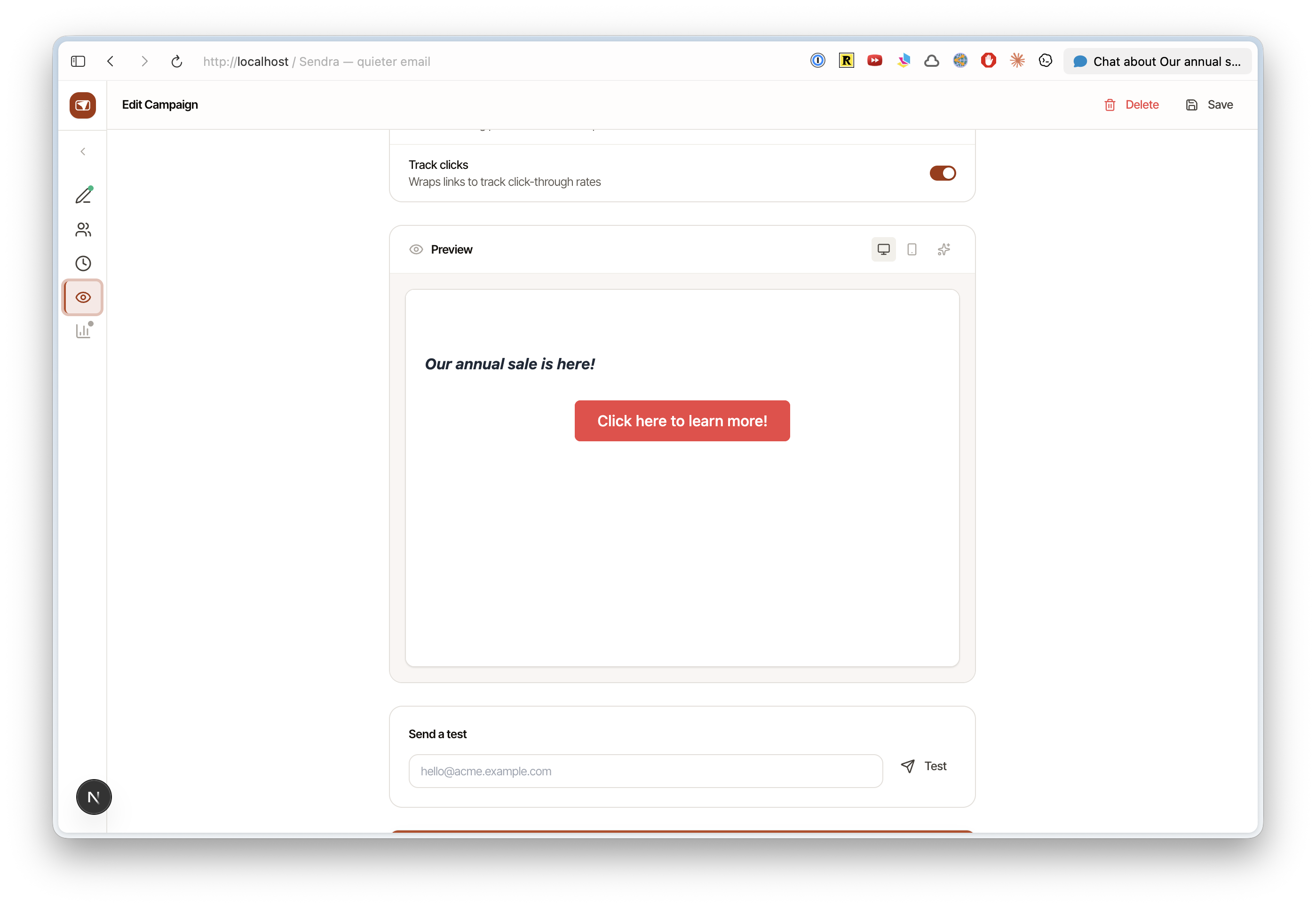
Preview panel
Click the Preview toggle in the editor toolbar to see your email as rendered HTML. The preview panel supports two views:
- Desktop — full-width rendering as it appears in desktop email clients
- Mobile — narrow viewport simulating how the email looks on phones
The preview updates in real time as you edit.
Send a test email
Before sending a campaign to your audience:
- Click Send Test Email in the campaign editor
- Enter one or more email addresses
- The test email is sent through your SES connection, exactly as the real campaign would be
Test emails use the same rendering pipeline as production sends — same MJML conversion, same tracking setup, same styling. If a test looks right, the real send will too.
What to check
- Subject line and preview text — do they look right in your inbox?
- Variable rendering — are personalization variables showing correctly? (Test emails use placeholder values)
- Links — click every link to verify they work
- Images — do all images load?
- Mobile layout — check the mobile preview for text that's too small or buttons that are too narrow
- Dark mode — if your email client supports it, check how colors render in dark mode