The email editor
Sendra's visual email editor — a block-based, WYSIWYG editor built for crafting beautiful emails.
Sendra's email editor is a block-based WYSIWYG editor. What you see in the editor is exactly what your recipients will see — no surprises, no "it looked different in preview."
Editor modes
The editor has three modes, accessible from the toolbar:
- Visual — the default block editor. Write content, insert elements with slash commands, drag to reorder, and style everything visually.
- HTML — raw HTML editing for when you need full control. Use this for custom layouts or pasting HTML from external tools.
- Preview — see your email as it will render in desktop and mobile email clients.
Writing content
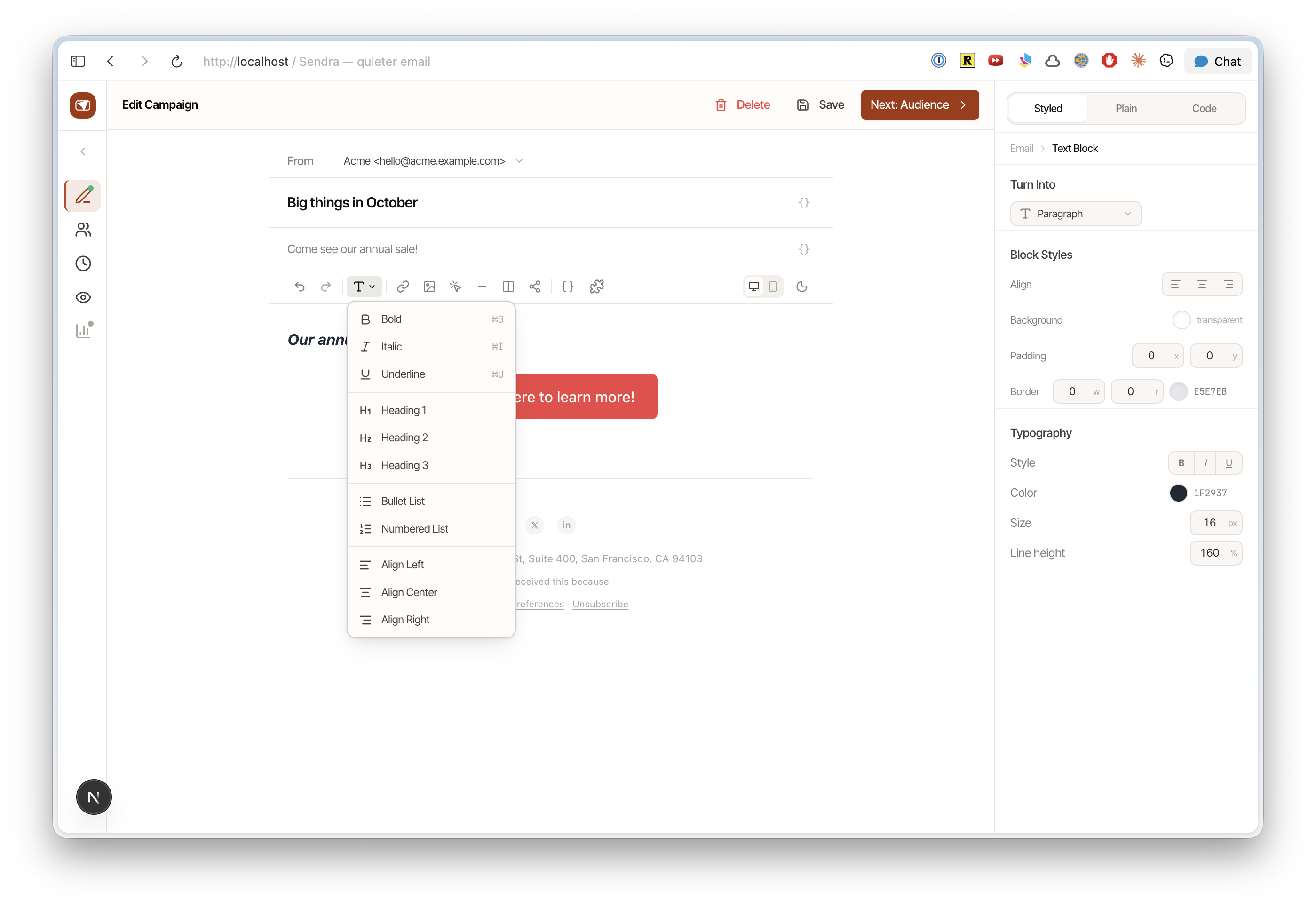
Start typing to create a paragraph. The editor supports standard text formatting:
- Bold —
Cmd/Ctrl + B - Italic —
Cmd/Ctrl + I - Underline —
Cmd/Ctrl + U - Links —
Cmd/Ctrl + K
Press Enter to create a new block. Press Shift + Enter for a line break within the same block.
Block types
Every piece of content is a block. Available blocks:
| Block | Description |
|---|---|
| Paragraph | Standard text |
| Heading | H1, H2, or H3 |
| Bullet list | Unordered list |
| Ordered list | Numbered list |
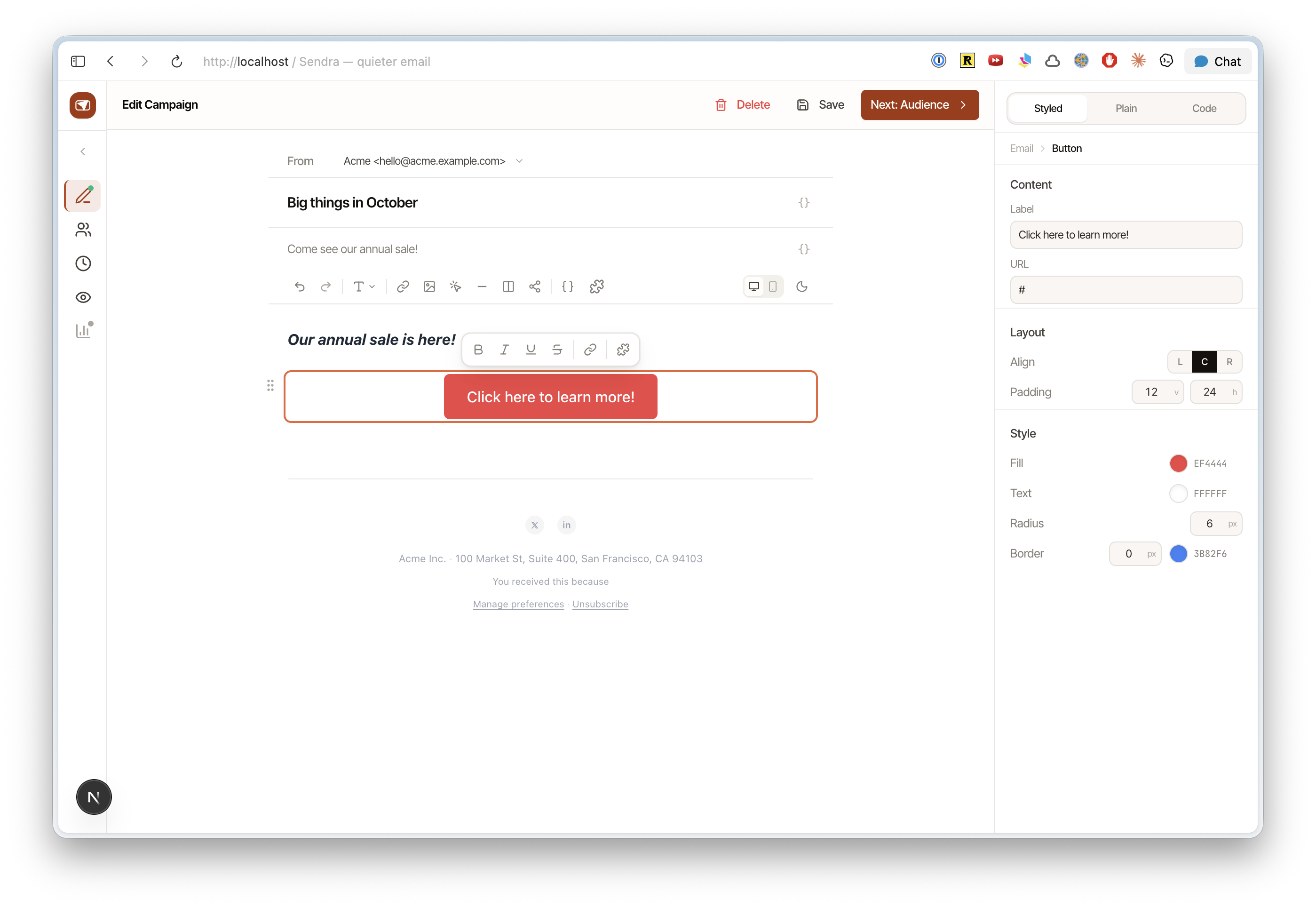
| Button | Call-to-action button with customizable text, URL, and styling |
| Divider | Horizontal line to separate sections |
| Image | Upload or paste an image |
| Variable | Dynamic content that personalizes per contact |
Insert any block by typing / to open the slash command menu.
Drag and drop
Hover over any block to reveal a drag handle on the left. Grab it to reorder blocks within your email.
Text alignment
Select text and use the alignment controls in the toolbar to set left, center, or right alignment.
The two-layer design
Sendra emails use a two-layer design:
- Outer layer — the email client background (what Gmail, Outlook, etc. show behind your email)
- Inner layer — the content card where your actual email lives
This creates a clean "floating card" look in email clients that support it. You can customize both layers independently in email styling.