Lists
Organize contacts into lists for targeted campaigns and preference management.
Lists let you group contacts so you can send targeted campaigns, let subscribers manage their own preferences, and keep your audience organized.
Creating a list
- Go to Lists → New List
- Give it a name and optional description
- Choose the opt-in mode:
- Single opt-in — contacts are added immediately
- Double opt-in — contacts receive a confirmation email and must click to verify
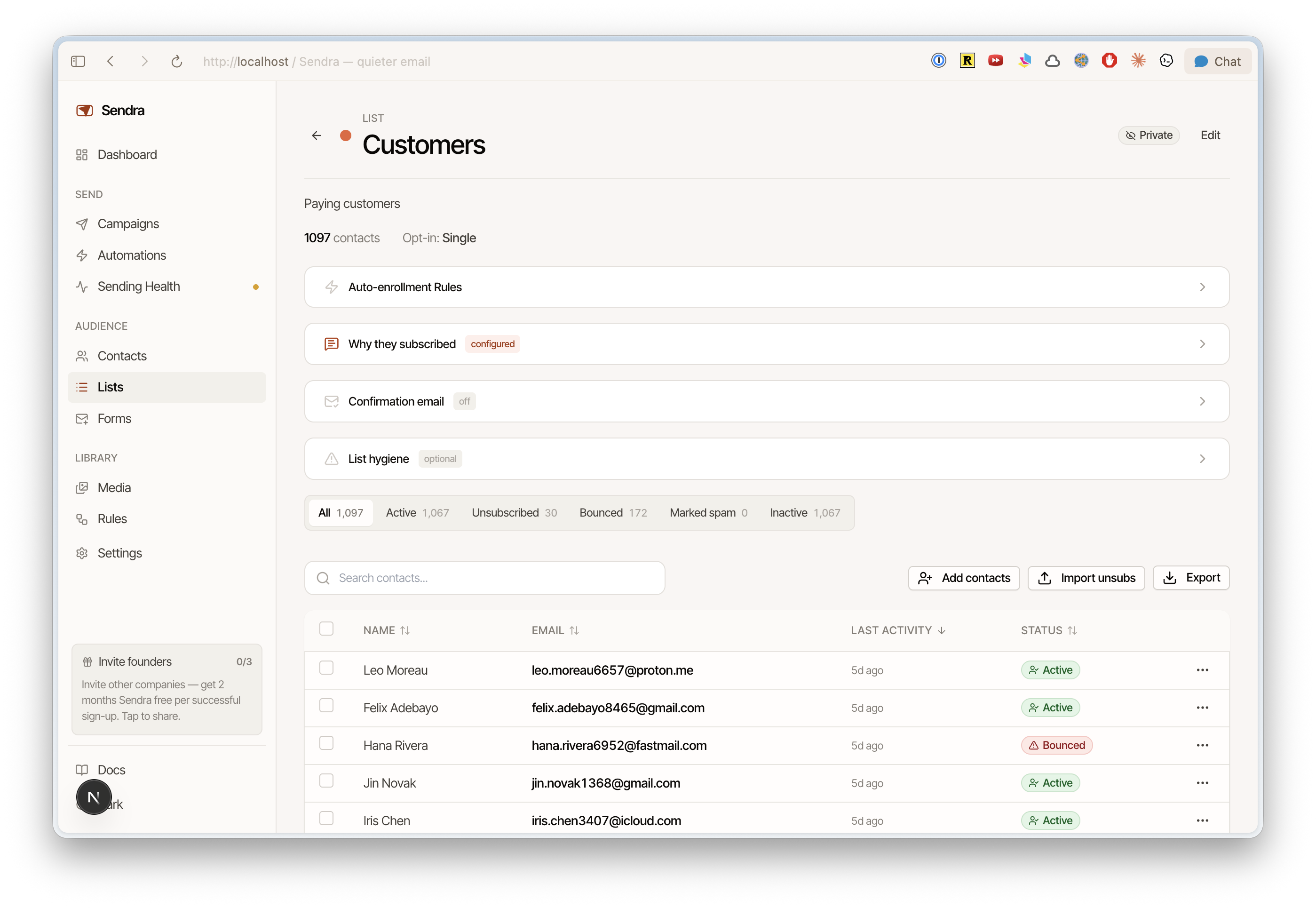
Adding contacts to a list
Several ways:
- Manually — from a contact's profile or list detail page
- During import — assign contacts to a list when importing a CSV
- Signup forms — forms can automatically add submissions to a list
- Auto-rules — define conditions that automatically add matching contacts
- API — add contacts to lists programmatically
Auto-rules
Auto-rules automatically add contacts to a list when they match certain conditions. For example:
- Add contacts with tag "enterprise" to the "Enterprise Updates" list
- Add contacts with property
plan = "pro"to the "Pro Tips" list
Auto-rules run when contacts are created or updated.
Bounce pruning
Lists can automatically remove contacts that have hard-bounced. Enable this in the list settings to keep your lists clean without manual intervention.
Visibility
Lists can be:
- Public — visible in the subscriber preference center, so contacts can opt in or out themselves
- Private — only visible to workspace members, used for internal segmentation
Using lists in campaigns
When creating a campaign, select your audience:
- All contacts — send to everyone
- Specific list — send only to members of a list
- Exclusion lists — exclude members of certain lists from receiving the campaign