Roles & permissions
Owner, Admin, and Member roles and what each one can do.
Everyone you invite to a workspace gets one of three roles. Manage them under Settings → Members.
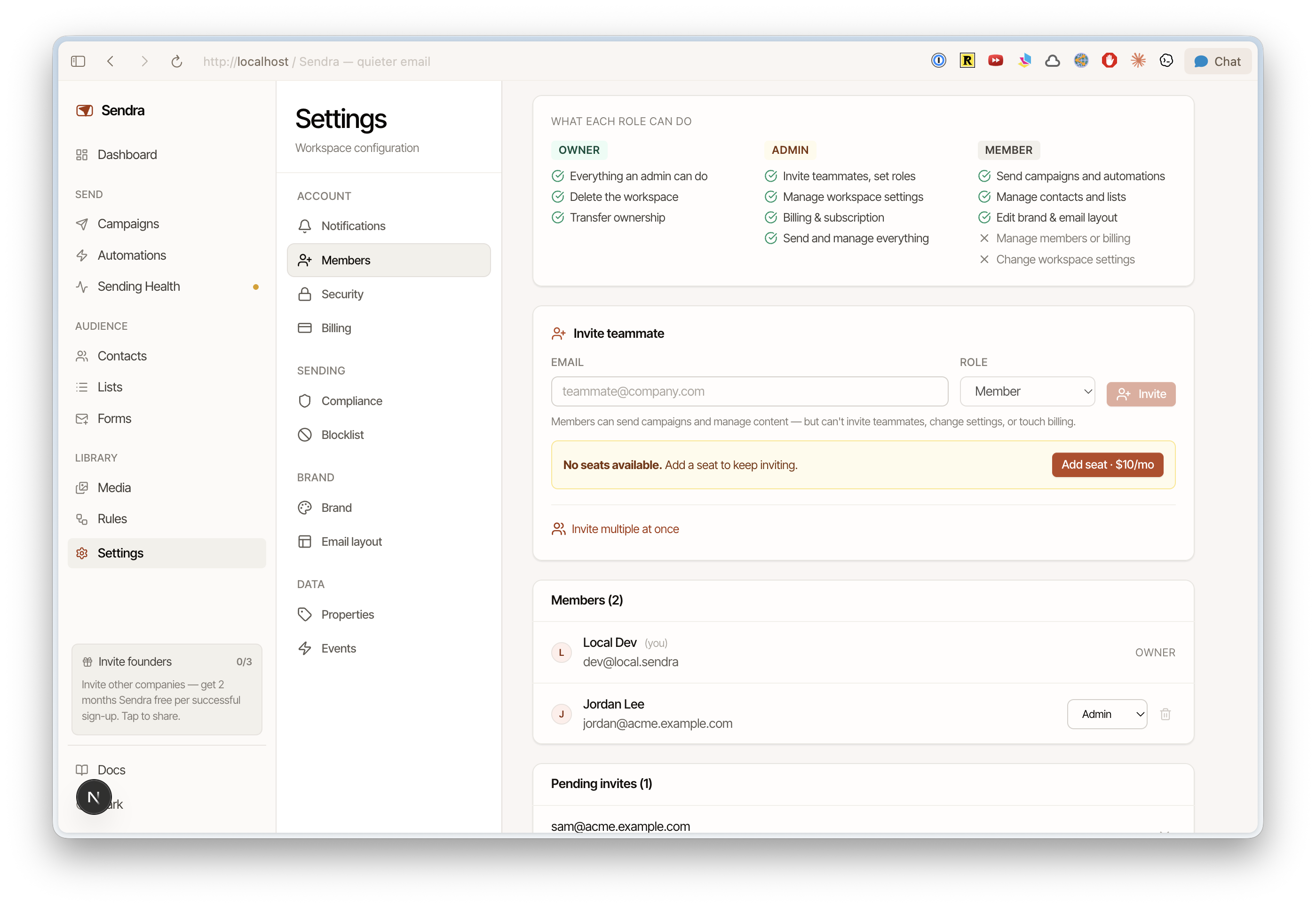
The three roles
| Role | Best for | Can't |
|---|---|---|
| Owner | The person who owns the account and billing | — |
| Admin | Trusted teammates who manage settings and billing | Delete the workspace or transfer ownership |
| Member | People who create and send email day to day | Manage members, billing, or workspace settings |
Owner
Everything an Admin can do, plus:
- Delete the workspace
- Transfer ownership to another member
- Promote a member or admin to Owner
A workspace always has at least one owner — you can't demote or remove the last one.
Admin
- Invite teammates and set their roles (except owner)
- Manage workspace settings, brand, and compliance
- Manage billing & subscription
- Connect Amazon SES and sending domains
- Send and manage everything a member can
Member
Members run the email program but stay out of account-level controls.
- ✅ Send campaigns and automations
- ✅ Manage contacts, lists, and segments
- ✅ View brand & email layout
- ❌ Invite or manage members
- ❌ Billing or workspace settings
- ❌ Connect Amazon SES or add domains
Who can change what
- Admins can invite, remove, and set roles for members.
- Only owners can promote someone to owner, change an owner's role, or remove an admin or owner.
- The last owner can't be demoted or removed — transfer ownership first.
Transferring ownership
To hand off a workspace, promote another member to Owner from the role dropdown (only an existing owner can do this). Once they're an owner, you can step down to Admin if you like.
Switching workspaces
If you belong to more than one workspace — say you manage email for multiple brands — use the workspace switcher to jump between them. Each workspace has its own contacts, campaigns, domains, billing, and members; nothing is shared across them. See core concepts.