Email styling
Customize colors, fonts, spacing, and layout for your emails.
Sendra gives you granular control over email styling through the settings panel. Open it by clicking the Settings (gear) icon in the editor toolbar.
Style categories
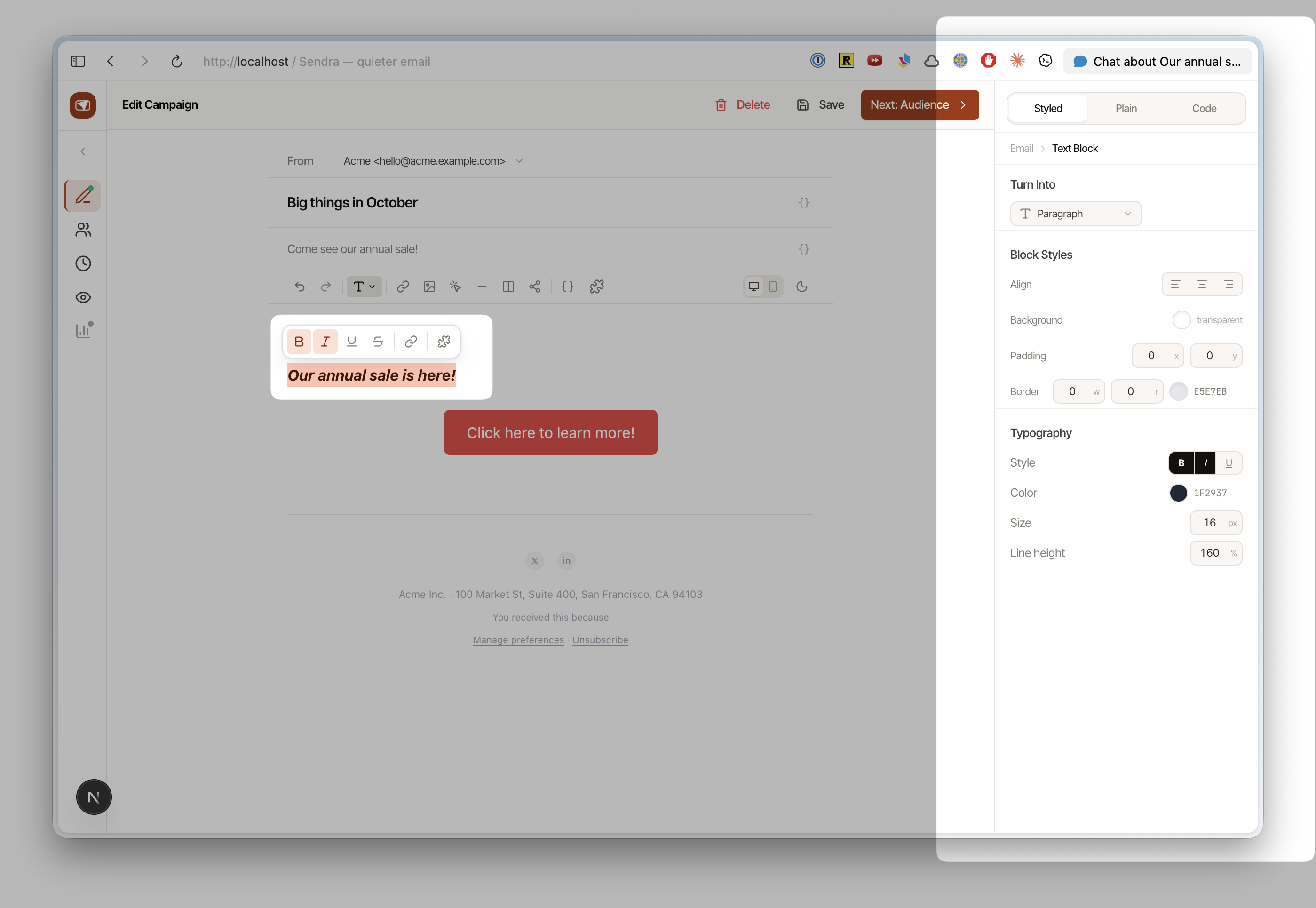
Body
The inner content area of your email — the card where your text and images live.
- Background color — the card background
- Padding — space between the card edge and your content
- Border radius — rounded corners on the card
- Max width — how wide the content area is (default: 600px, the email standard)
Background
The outer area behind the email card — what shows in email clients like Gmail that render a background around your content.
- Background color — typically a subtle gray or your brand color
Text
Default text styling applied to all paragraphs:
- Font family — choose from web-safe fonts
- Font size — base text size
- Text color — auto-adjusts for contrast against your background
- Line height — spacing between lines
Buttons
Global button styling that applies to all button blocks:
- Background color — button fill
- Text color — button label color
- Border radius — button corner rounding
- Padding — internal spacing
Dividers
- Color — divider line color
- Width — line thickness
- Style — solid, dashed, or dotted
Smart contrast
Sendra automatically adjusts text colors for readability. If you set a dark background, text automatically becomes light. You can override this at any time — the auto-adjustment is a starting point, not a lock.
WYSIWYG
Every styling change you make is reflected live in the editor. The editor renders your email exactly as it will appear to recipients — Sendra converts your content to production-quality HTML through its MJML rendering pipeline.