Slash commands
Insert blocks and elements quickly using slash commands.
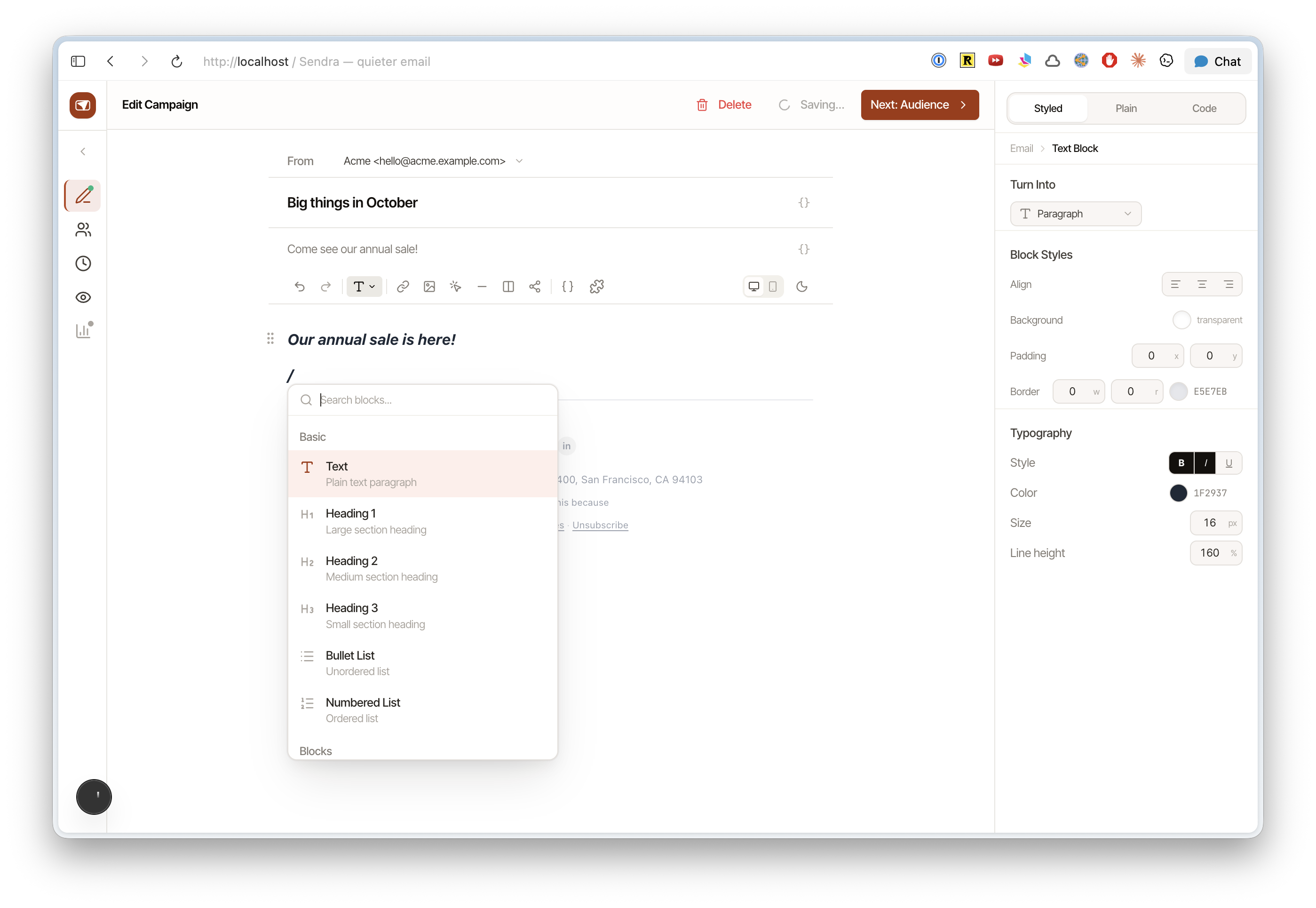
Type / anywhere in the editor to open the slash command menu. Start typing to filter commands.
Available commands
| Command | What it inserts |
|---|---|
/heading or /h1 | Heading (level 1) |
/h2 | Heading (level 2) |
/h3 | Heading (level 3) |
/bullet or /list | Bullet list |
/numbered or /ordered | Numbered list |
/button | Call-to-action button |
/divider | Horizontal divider line |
/image | Image upload/embed |
/variable | Dynamic variable (e.g., first name) |
Using the menu
- Type
/— the menu appears below your cursor - Type to filter (e.g.,
/butshows "Button") - Press
Enteror click to insert - Press
Escapeto dismiss
The menu is context-aware and shows the most relevant options first.
Keyboard shortcuts
Beyond slash commands, you can use standard keyboard shortcuts:
| Shortcut | Action |
|---|---|
Cmd/Ctrl + B | Bold |
Cmd/Ctrl + I | Italic |
Cmd/Ctrl + U | Underline |
Cmd/Ctrl + K | Insert link |
Cmd/Ctrl + Z | Undo |
Cmd/Ctrl + Shift + Z | Redo |